My pal Josha Hoblitt and I have tried to make
automation of Jenkins configuration slightly less painful for Puppet users with the
puppet-jenkins module, but
that’s still rather hackish. To this day, the most effective way to automate
configuration in Jenkins is to use its built-in
Groovy scripting support and the little-known
feature of loading scripts from the init.groovy.d/ directory.
The init.groovy.d/ directory is an optional directory you can create in
JENKINS_HOME, typically /var/lib/jenkins. The directory can be filled with
Groovy scripts which Jenkins will run when it starts, after it has loaded
plugins, but before it starts servicing user requests and scheduled
workloads. The Groovy scripts in this directory are effectively the same as one
might execute in the Script
Console or via the
groovy CLI command.
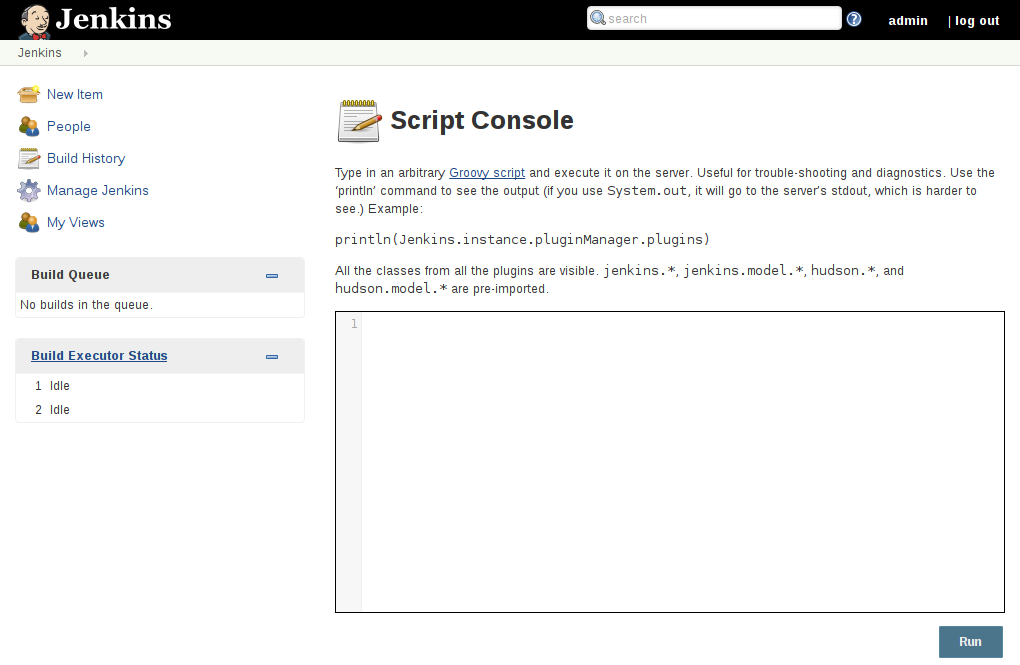
“Cool!” I’m sure you’re thinking, but slow down there buckaroo. Developing these Groovy scripts, as luck would have it, is painful. The Groovy scripts manipulate internal state of the Jenkins instance, by constructing objects and executing methods on Jenkins’ own object graph.
Here’s a simple example which sets the number of executors on the master to zero:
/*
 * Make sure the number of executors available on the master is set to zero
 */

import jenkins.model.*
Jenkins.instance.setNumExecutors(0)
Detour!
Experienced Jenkins users and administrators might be familiar with all the
.xml files which litter JENKINS_HOME. “XML, that’s used for uglier versions
of JSON documents right?” In most other cases, this is probably correct, but
not in Jenkins. In Jenkins, for the most part, these .xml files are
XStream serializations of objects; they
are not typical XML documents.
Some slices of the object graph in Jenkins is serialized and written to disk.
It’s kind of like Smalltalk, but with the JVM and XML.
Developing Groovy for Jenkins
So these Groovy scripts must manipulate the object graph in Jenkins in order to accomplish anything, meaning that the poor sap who tries to automate Jenkins must understand Jenkins internal APIs in order to be successful! Yay! Here are some tips help:
- Use the Docker image to quickly iterate.
- Use the web UI to configure settings visually, then compare the XML
- Rely on javadoc.jenkins.io and plugin javadocs to get call invocations correct.
- Verify in the Script Console
Iterating with Docker
In an example source tree, imagine I have init.groovy.d/ with my Groovy
scripts, I rely heavily on the Docker
image and will typically use a command
like the following to run a local instance of Jenkins with my Groovy scripts:
docker run --rm -ti -p 8080:8080 \
    -v $PWD/init.groovy.d:/var/jenkins_home/init.groovy.d \
    -v $PWD/jenkins-tmp:/var/jenkins_home \
    -e JAVA_OPTS=-Djenkins.install.runSetupWizard=false \
    jenkins/jenkins:lts-alpine
This will map my current directory’s init.groovy.d into the approprate path
inside the container. I also map in jenkins-tmp so I can inspect .xml files
after runnign Jenkins, and finally I disable the new installation “Setup
Wizard” making iteration easy.
Whenever I’m satisfied that my scripts are doing the right thing, I’ll stop the container, and restart it so it loads my script like any other “pristine” Jenkins.
Using the web UI to generate XML
Think of the Jenkins web UI as a pretty way of interacting with the gnarly
object graph underneath. By making changes in the web UI, and then inspecting
.xml files for the changes. Finding the right .xml file matching the right
web UI settings requires a little bit of guess and check, but here are some
rough pointers
- Most basic settings from “Configure System” live in
config.xml - Global settings provided by plugins might be found in files which start with
org.jenkinsci.plugins.orhudson.plugins., e.g.hudson.plugins.git.GitSCM.xml.
If I look at the file hudson.plugins.git.GitSCM.xml after configuring some
Git specific settings, it contains:
<?xml version='1.0' encoding='UTF-8'?>
<hudson.plugins.git.GitSCM_-DescriptorImpl plugin="git@3.3.2">
    <generation>1</generation>
    <globalConfigName>tyler</globalConfigName>
    <globalConfigEmail>tyler@example.com</globalConfigEmail>
    <createAccountBasedOnEmail>false</createAccountBasedOnEmail>
</hudson.plugins.git.GitSCM_-DescriptorImpl>
Which gives me clues to which Javadocs to look at for API signatures in my
Groovy scripting. I’ll be looking for a class named GitSCM and its
constructor agruments.
Referencing Javadoc
In the example above, I would refer to the Git plugin’s Javadoc and start digging around in there. This is probably the most challenging stage of developing Groovy automation for Jenkins, figuring out which classes need to be constructed and which methods might need to be called. A lot of experimentation is needed here, which is where the Script Console comes in.
Prototyping in the Script Console
In my Docker image-based environment, I can make breaking changes in the Script
Console without much consequence. As I develop a .groovy file, I’ll paste
snippets in the Script Console and click Run, verifying that the script is
doing what I expect it to do, using the web UI to cross-reference.
Once my little bit of groovy is working as expected, I’ll commit it and move onto the next item.
Automating Jenkins isn’t easy but if you know where to look, it doesn’t need
to be impossible either. The nice thing about the Groovy approach, as I have
used it in the past, is init.groovy.d/ can run at the instance’s boot time,
and then I can use the same file, run it through the groovy CLI command and
ensure that the instance’s settings are correct.
I hope you have found this brief reprieve from gardening blog posts useful!
]]>